


|
Navigation
Search
|
AI power tools: 6 ways to supercharge your terminal
Wednesday December 24, 2025. 10:00 AM , from InfoWorld
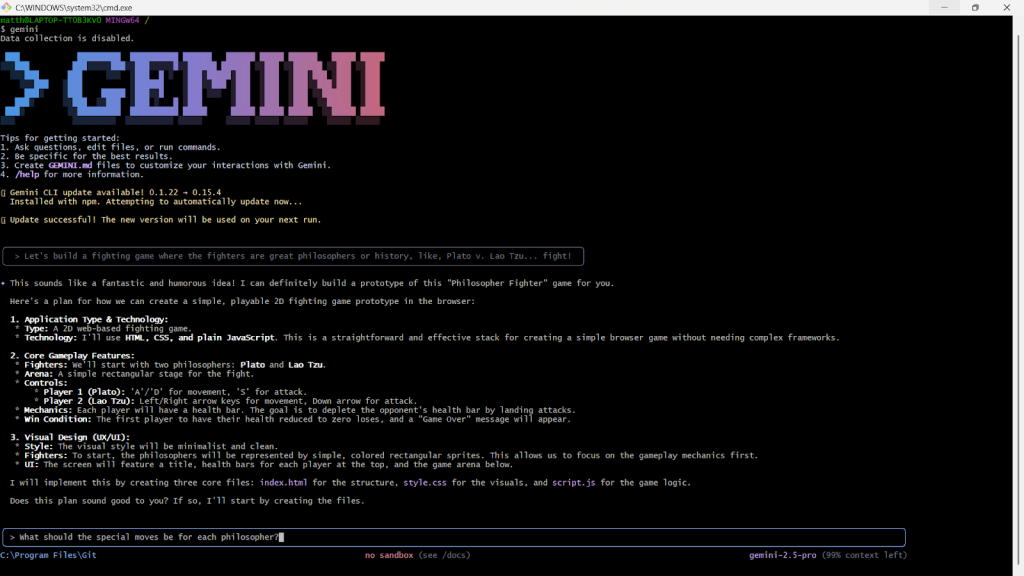
The CLI tells you in spartan terms what is happening with your program, and it does exactly what you tell it to. The lack of frivolity and handholding is both the command-line’s power and its one major drawback. Now, a new class of AI tools seeks to preserve the power of the CLI while upgrading it with a more human-friendly interface. These tools re-envision the REPL (the read-evaluate-print-loop) as a reason-evaluate loop. Instead of telling your operating system what to do, you just give it a goal and set it loose. Rather than reading the outputs, you can have them analyzed with AI precision. For the lover of the CLI—and everyone else who programs—the AI-powered terminal is a new and fertile landscape. Gemini CLI Gemini CLI is an exceptionally strong agent that lets you run AI shell commands. Able to analyze complex project layouts, view outputs, and undertake complex, multipart goals, Gemini CLI isn’t flawless, but it warms the command line-enthusiast’s heart. Google’s Gemini comes to the command line.Matthew Tyson Gemini CLI recently added in-prompt interactivity support, like running vi inside the agent. This lets you avoid dropping out of the AI (or launching a new window) to do things like edit a file or run a long, involved git command. The AI doesn’t retain awareness during your interactions (you can use Ctrl-f to shift focus back to it), but it does observe the outcome when you are done, and may take appropriate actions such as running unit tests after closing vi. Copilot is rumored to have better Git integration, but I’ve found Gemini performs just fine with git commands. Like every other AI coding assistant, Gemini CLI can get confused, spin in circles, and spawn regressions, but the actual framing and prompt console are among the best. It feels fairly stable and solid. It does require some adjustments, such as being unable to navigate the file system (e.g., cd /foo/bar) because you’re in the agent’s prompt and not a true shell. GitHub Copilot CLI Copilot’s CLI is just as solid as Gemini’s. It handled complex tasks (like “start a new app that lets you visit endpoints that say hello in different languages”) without a hitch. But it’s just as nice to be able to do simple things quickly (like asking, “what process is listening on port 8080?”) without having to refresh system memory. The ubiquitous Copilot VS Code extension, but for the terminal environment.Matthew Tyson There are still drawbacks, of course, and even simple things can go awry. For example, if the process listening on 8080 was run with systemctl, Copilot would issue a simple kill command. Copilot CLI’s?? is a nice idea, letting you provide a goal to be turned into a prompt—?? find the largest file in this directory yields find. -type f -exec du -h {} + 2>/dev/null | sort -rh | head -10— but I found the normal prompt worked just as well. I noticed at times that Copilot seemed to choke and hang (or take inordinately long to complete) on larger steps, such as Creating Next.js project (Esc to cancel · 653 B). In general, I did not find much distinction between Gemini and Copilot’s CLIs; both are top-shelf. That’s what you would expect from the flagship AI terminal tools from Google and Microsoft. The best choice likely comes down to which ecosystem and company you prefer. Ollama Ollama is the most empowering CLI in this bunch. It lets you install and run pre-built, targeted models on your local machine. This puts you in charge of everything, eliminates network calls, and discards any reliance on third-party cloud providers (although Ollama recently added cloud providers to its bag of tricks). The DIY AI engine.Matthew Tyson Ollama isn’t an agent itself but is the engine that powers many of them. It’s “Docker for LLMs”—a simple command-line tool that lets you download, manage, and run powerful open source models like Llama 3 and Mistral directly on your own machine. You run ollama pull llama3 and then ollama run llama3 '...' to chat. (Programmers will especially appreciate CodeLlama.) Incidentally, if you are not in a headless environment (like Windows) Ollama will install a simple GUI for managing and interacting with installed models (both local and cloud). Ollama’s killer feature is privacy and offline access. Since the models run entirely locally, none of your prompts or code ever leaves your machine. It’s perfect for working on sensitive projects or in secure environments. Ollama is an AI server, which gives you an API so that other tools (like Aider, OpenCode, or NPC Shell) can use your local models instead of paying for a cloud provider. The Ollama chat agent doesn’t compete with interactive CLIs like Gemini, Copilot, and Warp (see below); it’s more of a straight REPL. The big trade-off is performance. You are limited by your own hardware, and running the larger models requires powerful (preferably Nvidia) GPUs. The choice comes down to power versus privacy: You get total control and security, but you’re responsible for bringing the horsepower. (And, in case you don’t know, fancy GPUs are expensive—even provisioning a decent one on the cloud can cost hundreds of dollars per month.) Aider Aider is a “pair-programming” tool that can use various providers as the AI back end, including a locally running instance of Ollama (with its variety of LLM choices). Typically, you would connect to an OpenRouter account to provide access to any number of LLMs, including free-tier ones. The agentic layer.Matthew Tyson Once connected, you tell Aider what model you want to use when launching it; e.g., aider --model ollama_chat/llama3.2:3b. That will launch an interactive prompt relying on the model for its brains. But Aider gives you agentic power and will take action for you, not just provide informative responses. Aider tries to maintain a contextual understanding of your filesystem, the project files, and what you are working on. It also is designed to understand git, suggesting that you init a git project, committing as you go, and providing sensible commit messages. The core capability is highly influenced by the LLM engine, which you provide. Aider is something like using Ollama but at a higher level. It is controlled by the developer; provides a great abstraction layer with multiple model options; and layers on a good deal of ability to take action. (It took me some wrangling with the Python package installations to get everything working in Aider, but I have bad pip karma.) Aider is something like Roo Code, but for the terminal, adding project-awareness for any number of models. If you give it a good model engine, it will do almost everything that the Gemini or Copilot CLI does, but with more flexibility. The biggest drawback compared to those tools is probably having to do more manual asset management (like using the /add command to bring files into context). AI Shell Built by the folks at Builder.io, AI Shell focuses on creating effective shell commands from your prompts. Compared to the Gemini and Copilot CLIs, it’s more of a quick-and-easy utility tool; something to keep the terminal’s power handy without having to type out commands. The natural-language commander.Matthew Tyson AI Shell will take your desired goal (e.g., “$ ai find the process using the most memory right now and kill it”) and offer working shell commands in response. It will then ask if you want to run it, edit it, copy, or cancel the command. This makes AI Shell a simple place to drop into, as needed, from the normal command prompt. You just type “ai” followed by whatever you are trying to do. Although it’s a handy tool, the current version of AI Shell can only use an OpenAI API, which is a significant drawback. There is no way to run AI Shell in a free tier, since OpenAI no longer offers free API access. Warp Warp started life as a full-featured terminal app. Its killer feature is that it gives you all the text and control niceties in a cross-platform, portable setup. Unlike the Gemini and Copilot CLI tools, which are agents that run inside an existing shell, Warp is a full-fledged, standalone GUI application with AI integrated at its core. The terminal app, reimagined with AI.Matthew Tyson Warp is a Rust-based, modern terminal that completely reimagines the user experience, moving away from the traditional text stream to a more structured, app-like interface. Warp’s AI is not a separate prompt but is directly integrated with the input block. It has two basic modes: The first is to type # followed by a natural language query (e.g., “# find all files over 10 megs in this dir”), which Warp AI will translate into the correct command. The second mode is the more complex, multistep agent mode (“define a cat-related non-blocking endpoint using netty”), which you enter with Ctrl-space. An interesting feature, Warp Workflows are parameterized commands that you can save and share. You can ask the AI to generate a workflow for a complex task (like a multistage git rebase) and then supply it with arguments at runtime. The main drawback for some CLI purists is that Warp is not a traditional CLI. It’s a block-based editor, which treats inputs and outputs as distinct chunks. That can take some getting used to—though some find it an improvement. In this regard, Warp breaks compatibility with many traditional terminal multiplexers like tmux/screen. Also, its AI features are tied to user accounts and a cloud back end, which likely raises privacy and offline-usability concerns for some developers. All that said, Warp is a compelling AI terminal offering, especially if you’re looking for something different in your CLI. Aside from its AI facet, Warp is somewhere between a conventional shell (like Bash) and a GUI. Conclusion If you currently don’t like using a shell, these tools will make your life much easier. You will be able to do many of the things that previously were painful enough to make you think, “there must be a better way.” Now there is, and you can monitor processes, sniff TCP packets, and manage perms like a pro. If you, like me, do like the shell, then these tools will make the experience even better. They give you superpowers, allowing you to romp more freely across the machine. If you tend (like I do) to do much of your coding from the command line, checking out these tools is an obvious move. Each tool has its own idiosyncrasies of installation, dependencies, model access, and key management. A bit of wrestling at first is normal—which most command-line jockeys won’t mind.
https://www.infoworld.com/article/4105894/ai-power-tools-6-ways-to-supercharge-your-terminal.html
Related News
|

25 sources
Current Date
Dec, Wed 24 - 12:13 CET
|
 Read more at InfoWorld


