


|
Navigation
Search
|
6 recent Google Chrome features you probably forget to use
Friday December 12, 2025. 11:45 AM , from ComputerWorld
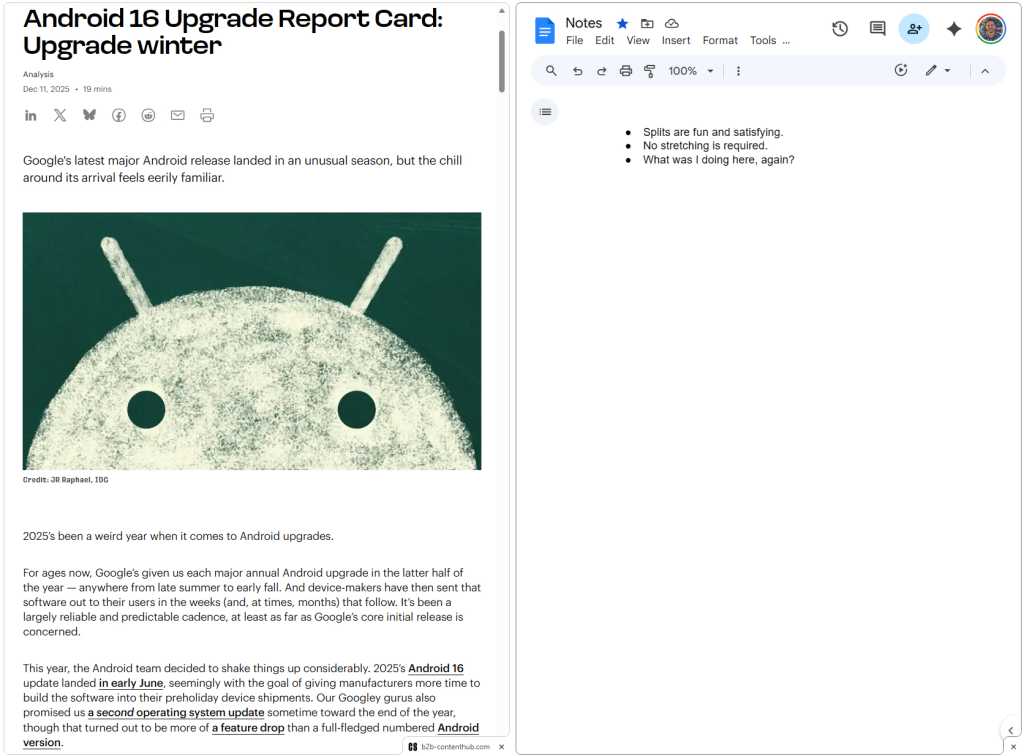
Sometimes, though, those same sorts of scintillating slivers can have the unintended effect of being so seamlessly integrated into an app or process that you completely forget they’re there and never get into the habit of actually using ’em. Or, worse yet, maybe you never even notice their arrival at all. With Google’s Chrome desktop browser, we’ve seen so many features pop up over so many months that it’s all too easy to have that happen. I was reminded of that fact when I randomly rediscovered a recent feature in Chrome on my computer the other day and realized I’d never fully explored it when it first showed up in the browser many weeks back. That prompted me to poke around some more and remember a bunch of other interesting features that similarly came into the Chrome compound somewhere along the way and then got promptly forgotten by my mushy middle-aged man-brain. So while we typically focus our noggins here on the Android-oriented side of Google’s Chrome creature and the many new options constantly coming into that kingdom, today, we’re gonna pivot and turn our attention to the desktop domain — ’cause if you’re using Chrome on Android (especially for Very Important Business Purposes), there’s a decent chance you’re using it on a computer at least some of the time, too. Here, without further ado, are six recent Chrome features you’ve probably forgotten.* * Assuming your aging brain is as mushy as mine.** ** If it isn’t, I apologize. And I’m incredibly impressed by you.*** *** What were we talking about, again? [Get fresh Googley goodness directly in your inbox with my free Android Intelligence newsletter. Three new things to try every Friday — minimal brainpower required.] Google Chrome feature #1: A new split view Up first is the feature that prompted this entire exploration — and, for full disclosure, it’s something I very much rolled my eyes at in amusement back when I first saw it. It’s a little somethin’ Google’s calling split view, for tabs, and it sounds quite silly on the surface. The idea is this: When you’re looking at a website on your computer, you might want to look at a second website alongside it. So instead of simply opening up two tabs or even opening two windows and positioning them alongside each other, you can now initiate an Android-reminiscent screen split and see any two tabs side by side within the same single Chrome window. You can see why I rolled my eyes, right? It sounds so pointless and redundant. Why bother with something like this when there are already so many other simple ways to accomplish something similar? That’s certainly what I thought. But then, the other day, I stumbled back onto the split tab view setup for the first time since my initial encounter, and I thought, “Huh — you know, I might as well at least try it.” And I’ve gotta tell ya: It is a surprisingly helpful new productivity booster to have. Here’s how it works: Anytime you’re viewing a tab, you can either right-click on its title (in the tab bar at the tippity-top of the Chrome window) and look for “Add tab to new split view” in the menu that comes up there or right-click on any link you see within the tab and find the equivalent option there. Either way you do it, you’ll end up with a screen that looks a little somethin’ like this: Chrome’s tab split view — who knew?JR Raphael, Foundry You can then easily view both tabs and move back and forth between ’em without having to mess with messy multiple-window layouts or isolated environments. You can even change the exact ratio of the split by clicking and dragging the divider between the two areas — and you can manage it further by clicking the split-view icon that appears to the left of your address bar and offers up options for separating your two views, reversing their order, or closing either side. For me, the value has been in areas like writing a document or taking notes whilst viewing a related web page, drafting an email whilst referencing a document, and other such tasks where having two things side by side is an enticing advantage. Best of all? The feature’s already there and waiting in any Chrome desktop habitat, no matter what kind of computer you’re using. All you’ve gotta do is remember to use it. Google Chrome feature #2: Instant analysis Another recently added Chrome desktop option waiting to be remembered is the Android-inspired ability to dive deeper into anything you encounter on this wide, wily ol’ web of ours and inspect it thoroughly with the excellent Google Lens tool. Google Lens is something we typically talk about in the context of Android. But when Android’s Lens-connected Circle to Search system started gaining steam last year, Google had the idea to bring a version of that same smartness over to the desktop side for us to enjoy in that environment as well. So here’s how to find it, in case you’d also forgotten: Right-click anywhere in any Chrome tab you’ve got open. In the menu that pops up, find and click the option to “Search with Google Lens.” Then use your mouse or trackpad to select any area of your screen that you want to investigate or learn more about. Once you do, Lens will spring into action and show you more info about whatever you’ve selected — whether it’s an image, some text, text within an image, you name it. Chrome’s desktop Lens option is like Circle to Search for your computer.JR Raphael, Foundry You can click on any of the results as well as copy the text (even if was inside an image and previously not something that could be copied), translate it, save it as a new image — all sorts of interesting possibilities. The powers are all there. It’s up to you to embrace ’em. Google Chrome feature #3: Instant interaction If a more chat-driven interaction is what you’re after, Google’s Gemini AI bot is also on the ready within the Chrome desktop browser — and in the right sort of scenario, it could actually be useful. You might, for instance, want to ask Gemini about something you see on a page — maybe a particular laptop model that you’re curious to learn the cost of or a sprawlingly long scientific article that you want to summarize and see translated into plain English. Whatever the case may be, the easiest way to call Gemini for page-specific questioning is to again right-click the tab’s title at the top of the Chrome window — and this time, look for the option to “Share tab with Gemini” in that context menu. That’ll beam the page into Chrome’s built-in Gemini portal, where you can then ask away to your heart’s content. See? Gemini’s Chrome presence can be helpful at times.JR Raphael, Foundry Just remember: As with any current-day large-language model system, you can’t always believe what Gemini tells you. But, if nothing else, it can be a helpful starting point for a deeper dive into some specific topic and a way to kick off your own more intricate and fact-grounded probe. Google Chrome feature #4: Easier reading Goog almighty, the modern web sure can be an eyesore to look at. (Insert awkward eye darting here.) Believe it or not, though, Chrome actually has a fantastic way to improve your web-wide reading experience. It eliminates annoying ads, over-the-top pop-ups, and unfortunate font and color choices, too. And, as a welcome bonus, it doesn’t even leave you feeling guilty that you’re depriving your favorite publisher and the people who work for it of the critical ad revenue that helps them keep publishing. My friend, meet — or maybe just reacquaint yourself with — Chrome’s remarkable reading mode. Anytime you’re viewing an article of any sort, simply right-click anywhere within the window and find the option to “Open it reading mode.” And hey — how ’bout that?! Before and after. ‘Nuff said.JR Raphael, Foundry Right there, alongside the regular version of the page, is a cleaned-up, distilled-down version that you can actually read without wanting to gouge your eyes out. (Insert additional awkward eye darting here.) You can even customize everything about the article’s appearance in the controls at the top of the reading mode area — changing its font style, font size, color theme, even line height and line spacing (if you really wanna get wild). And since the page loads alongside the original, the site still gets your view and the credit for all of its ads displaying — giving you a clear conscience to complement your non-cringe-inducing read. Win-win, I’d say. Google Chrome feature #5: A reading companion While we’re looking at that reading mode option, we also need to take note of an inconspicuous set of icons resting within its upper border. See that little play button and the three options alongside it? The other side of Chrome’s reading mode.JR Raphael, Foundry Yup — those are the ones. Clicking the play button will cause Chrome to read the text from the reading mode window out loud to you, which can be a handy way to ingest info when you’re also ingesting your lunch. (Mmm…lunch.) The buttons next to it will let you change the speed of the reading and the specific voice used, among other adjustments. And for an extra easily-overlooked addition, note, too, that you can also highlight specific segments of text within the reading mode area and then click the play button. That’ll cause Chrome to read only those exact segments aloud — an interesting way to share specific snippets with a room of colleagues, koalas, or maybe even koala colleagues, depending on your current workplace situation. Google Chrome feature #6: Tab torque As a certified lifelong tab hoarder, you’d think I’d remember to use this next Chrome feature. But somehow, I never do. It’s a super-simple way to switch tabs using only your keyboard — and to find the exact tab you want to toggle to, no matter which window it’s within or how buried on your desktop it might be. Just hit Ctrl-Shift-A (or Cmd-Shift-A, if you’re one of those highfalutin Mac-owning marmosets). No matter where you are in Chrome or what else you’re working on, your browser will pop up a handy little window with all your open and recently closed tabs. You can then either use your keyboard’s arrows to move to the one you want or just start typing the title of the page you’re looking for — and, as Chrome narrows down the list to match, hit Enter when the right one is highlighted. The time-saving tab search switcher.JR Raphael, Foundry Yes, please — and thank you. A bonus feature: Instant device beaming This last feature isn’t technically part of our same collection, ’cause it isn’t especially recent at all. But it’s one of those things I think a lot of people forget (or never even realize) is possible — and it’s so forkin’ useful, I’d be remiss not to mention it as part of this conversation. So here ’tis: As long as you’re signed into the same Google account within Chrome on your various devices, the Chrome desktop browser has a supremely handy system for beaming any page you’re viewing on your computer directly over to your favorite Android phone or tablet. It’s a swift ‘n’ simple way to send something you opened at work onto your mobile device so you remember to look at it later — or maybe just leisurely read through it on your lunch. (Mmm…lunch.) With any page you’re viewing, click Chrome’s three-dot main menu icon — in the browser’s upper-right corner — then hover over “Cast, save, and share” and select “Send to your devices.” Now, this is how wireless sharing should happen.JR Raphael, Foundry It’s about as out of the way and buried as can be, but man alive, is it a treasure you’ll embrace and appreciate once you get yourself in the habit of relying on it. And that’s something that, with enough training and practice, even the mushiest old mammal brain can be conditioned to do. Related reading: 9 Google Chrome features you really should be using Got Android? Get my Android Intelligence newsletter for three fresh tips each Friday, straight from me to you.
https://www.computerworld.com/article/4104279/google-chrome-features.html
Related News
|

25 sources
Current Date
Jan, Thu 1 - 18:41 CET
|
 Read more at ComputerWorld


